
Executing & tracing DAX queries using SemPy


When you’re working with DAX queries, it’s easy to focus only on the final result and miss everything that happens along the way. But if you want to truly understand performance, troubleshoot issues, or fine-tune your models, you need visibility into the execution process itself. That’s where tracing comes in. By capturing the events generated during a query run, you can see exactly how your semantic model responds, step by step.
In this article, we’ll walk through how to use SemPy to programmatically execute DAX queries and trace the various events triggered during execution. Think of it as a backstage pass to your query execution, giving you a clear, real-time view of what’s happening under the hood.
- Tracing DAX Query Execution with Default Query Trace Schema
- Tracing DAX Query Execution with Event Schema
- Conclusion
- Next Steps
In a previous article, we explored the semantic link’s tracing features for real-time monitoring of Power BI semantic models. SemPy offers a programmatic interface to track Analysis Services trace events. If you’re new to this concept, we recommend checking out that article to get familiar with tracing, event categories, and the data columns, which make up the event schema.
The event schema is crucial when tracing semantic models, as it filters which events are captured and sent to you. Understanding the data columns you need to trace is key, especially when monitoring DAX query execution.
For example, when we execute a DAX query, depending on the level of detail you need, you can capture different layers of a DAX query’s execution. We can trace query events to get a high-level overview, including user details, total duration, DAX query, and CPU time, etc. We can trace query processing events to understand whether the query was handled by the Formula Engine or the Storage Engine (VertiPaq). We can trace execution metrics events to get granular data on row counts and memory consumption.
Knowing how to use the event schema effectively allows for better insights into your model’s performance and inner workings.
Tracing DAX Query Execution with Default Query Trace Schema
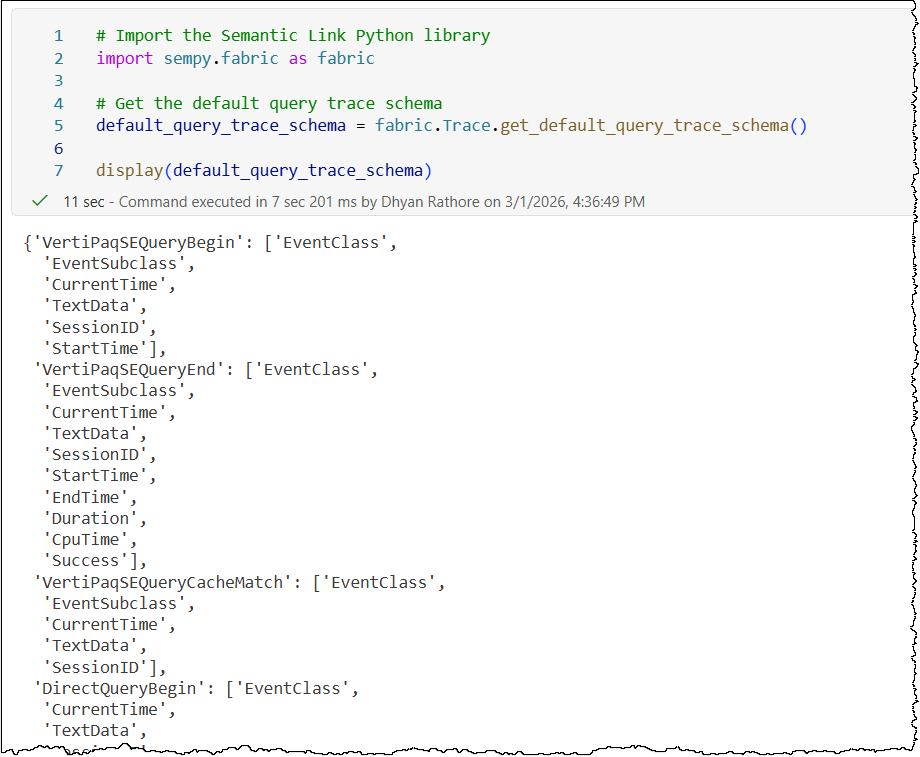
SemPy includes a pre-built default event schema to jumpstart your DAX query tracing. This schema captures the fundamental data points needed to monitor execution right out of the box, making it ideal for quick diagnostics. However, it is designed for simplicity and includes only basic data columns; if your analysis requires specialized or more granular metadata, you will need to expand the schema beyond these default columns.
It covers the following events and data columns (in PascalCase):
- Events: QueryBegin, QueryEnd, VertiPaqSEQueryBegin, VertiPaqSEQueryEnd, VertiPaqSEQueryCacheMatch, DirectQueryBegin, and DirectQueryEnd
- Event data columns: EventClass, EventSubclass, CurrentTime, TextData, SessionID, StartTime, EndTime, Duration, CpuTime, and Success
# Import the Semantic Link Python library
import sempy.fabric as fabric

# Get the default query trace schema
default_query_trace_schema = fabric.Trace.get_default_query_trace_schema()

display(default_query_trace_schema)
The process of tracing DAX query execution itself follows a logical sequence: establish a trace connection to the semantic model, create a trace with the required event schema, and then start the trace. Once the relevant activity is captured, you stop the trace and collect the event data. You can also collect event data while the trace is still running.
Let’s demonstrate this by executing a DAX query with SemPy and tracing events to monitor execution in real-time using the default query trace schema.
# Import the Semantic Link Python library
import sempy.fabric as fabric
import time

# Get the default query trace schema
default_query_trace_schema = fabric.Trace.get_default_query_trace_schema()

## ........ PROVIDE THE NAME OR ID OF YOUR TARGET WORKSPACE, TARGET SEMANTIC MODEL, AND THE DAX QUERY IN FOLLOWING VARIABLES ........ ##
target_workspace = "<TARGET_WORKSPACE_NAME_OR_ID>"
target_semantic_model = "<TARGET_SEMANTIC_MODEL_NAME_OR_ID>"

# DAX query to run against the target semantic model
target_dax_query = """
<DAX_QUERY_TO_RUN>
"""

# Establish a connection to the XMLA endpoint of the specific workspace and semantic model
# Using 'with' ensures the connection is closed automatically even if the code fails

with fabric.create_trace_connection(workspace = target_workspace, dataset = target_semantic_model) as trace_connection:
    # Define a trace session on the server side using the default query trace schema
    with trace_connection.create_trace(default_query_trace_schema, "SemPyDAXQueryTrace") as trace:

        # Start the trace. The argument (5) is a delay in seconds to wait for the trace to initialize
        trace.start(5)

        ## Execute the actual DAX query while the trace is "listening" in the background
        dax_result = fabric.evaluate_dax(
            workspace = target_workspace,
            dataset = target_semantic_model,
            dax_string = target_dax_query
        )

        display(dax_result)

        ### CRITICAL: Wait for the server to flush the remaining events into the log buffer before we stop the trace
        time.sleep(5)

        # Stop the server-side trace and download the captured event data into a pandas DataFrame
        trace_logs = trace.stop()

display(trace_logs)
Let’s understand this code snippet in detail
default_query_trace_schemacontains the default query trace schema and acts as ourevent_schemafor this trace.target_variables hold the necessary details required to execute the DAX query.create_trace_connectioncreates a trace connection to the specified target semantic model.create_tracecreates a server-side trace with the name “SemPyDAXQueryTrace” to track the events and data columns specified in the event schemadefault_query_trace_schema. The trace is created on the semantic model, and logs can be obtained either by callingget_trace_logs()or by stopping the trace.trace.start(5)starts the trace with a 5-second delay. This delay ensures that the Python engine has had enough time to register and subscribe to trace events.evaluate_daxis a SemPy function that executes the DAX query.time.sleep(5)adds a 5-second delay before the code execution stops the trace. This delay ensures that the trace remains active for 5 seconds after the DAX Query executes. During the sleep period, the trace remains active and logs events; it’s the Python kernel in the notebook that goes to sleep. The delay timer allows the semantic model to flush the remaining events into the log buffer before we stop the trace.trace_logs = trace.stop()stops the trace and retrieves the trace events as a Pandas dataframe.
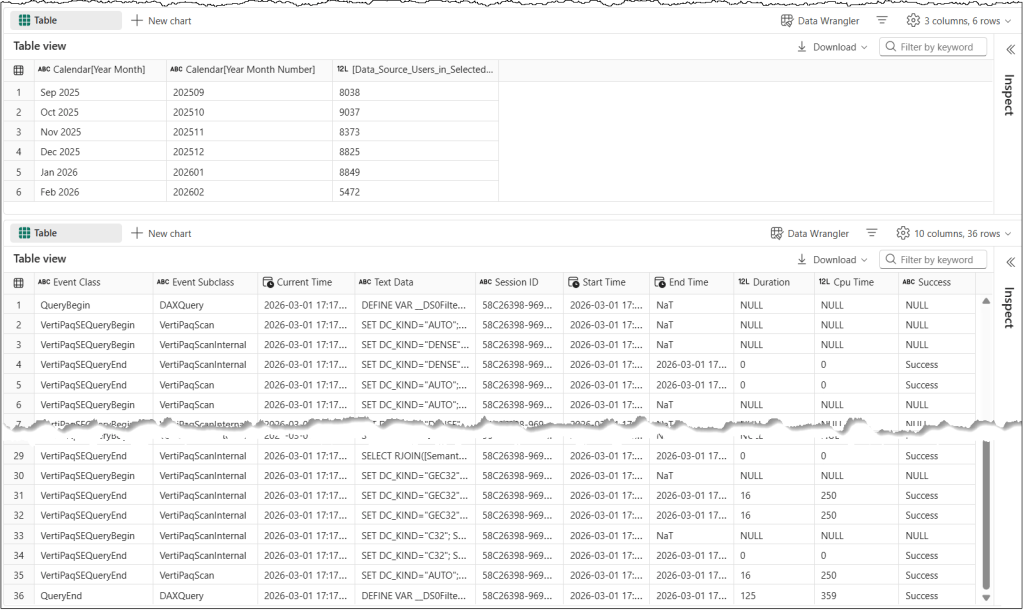
Above is a sample output of this code with a DAX query. It is easy to see that the trace did not capture execution metrics events for this query, as the default_query_trace_schema we used as the event schema for our trace does not include the “ExecutionMetrics” event. Execution metrics are key to understanding and optimizing the memory consumption by DAX queries.
Tracing DAX Query Execution with Event Schema
SemPy offers the flexibility to define a custom event schema, ensuring we capture only the specific events and data columns required for our analysis. To explore our options, we can use the discover_event_schema() method to retrieve a complete list of all available event categories and their associated columns.
# Import the Semantic Link Python library
import sempy.fabric as fabric

## NAME OR ID OF THE TARGET WORKSPACE AND THE TARGET SEMANTIC MODEL
target_workspace = "<TARGET_WORKSPACE_NAME_OR_ID>"
target_semantic_model = "<TARGET_SEMANTIC_MODEL_NAME_OR_ID>"

# Establish a connection to the XMLA endpoint of the specific workspace and semantic model
# Using 'with' ensures the connection is closed automatically even if the code fails
with fabric.create_trace_connection(workspace = target_workspace, dataset = target_semantic_model) as trace_connection:
    # Discover all event types and their associated columns
    discover_events = trace_connection.discover_event_schema()

print("Total Events with Data Columns: ", len(discover_events))

display(discover_events)
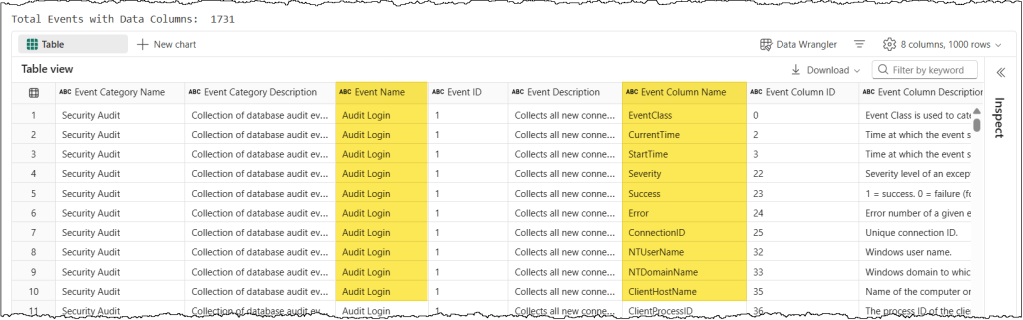
With these details in hand, you can easily build an event schema that captures exactly what you need. Let’s create an event schema to trace QueryBegin, QueryEnd, and ExecutionMetrics using only the specific columns we need. While you can copy the event column names exactly as they appear, the event names require a manual adjustment: they must be converted to PascalCase (e.g., “Query Begin” becomes “QueryBegin”) to be compatible with the trace event schema.
# Define events to trace and their corresponding data columns

event_query_begin_columns = [
    "EventClass",
    "EventSubclass",
    "RequestID",
    "ApplicationName",
    "NTCanonicalUserName",
    "SessionID",
    "ActivityID",
    "DatabaseName",
    "CurrentTime",
    "StartTime",
    "TextData"
]

event_query_end_columns = [
    "EventClass",
    "EventSubclass",
    "RequestID",
    "ApplicationName",
    "NTCanonicalUserName",
    "SessionID",
    "ActivityID",
    "DatabaseName",
    "CurrentTime",
    "StartTime",
    "EndTime",
    "Duration",
    "CpuTime",
    "Success",
    "Error",
    "TextData"
]

event_execution_metrics_columns = [
    "EventClass",
    "RequestID",
    "ApplicationName",
    "ActivityID",
    "DatabaseName",
    "TextData"
]

# Define event schema
event_schema = {
    "QueryBegin": event_query_begin_columns,
    "QueryEnd": event_query_end_columns,
    "ExecutionMetrics": event_execution_metrics_columns
}
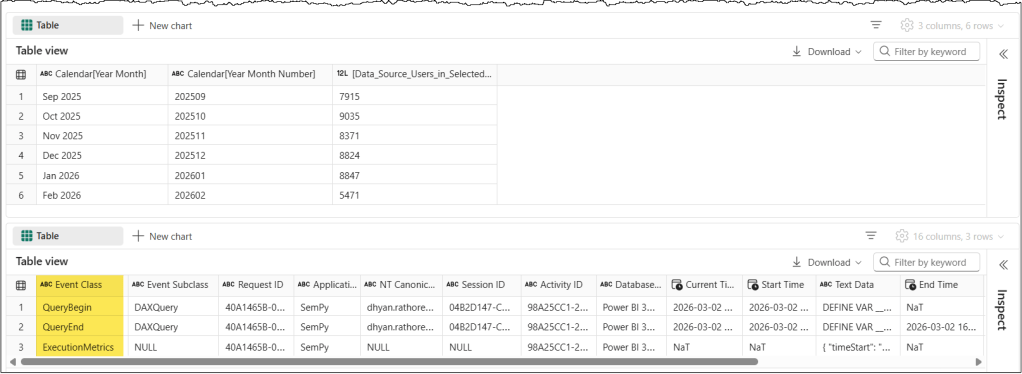
By applying this custom event schema to our trace to track the execution of the same DAX query as in the previous section, the trace results change significantly. We only get the events and columns we have specified in our event schema. Once you know where to find the event names and their corresponding data columns, customizing your schema to capture only the data you need becomes straightforward.
# Import the Semantic Link Python library
import sempy.fabric as fabric
import time

## ........ PROVIDE THE NAME OR ID OF YOUR TARGET WORKSPACE, TARGET SEMANTIC MODEL, AND THE DAX QUERY IN FOLLOWING VARIABLES ........ ##
target_workspace = "<TARGET_WORKSPACE_NAME_OR_ID>"
target_semantic_model = "<TARGET_SEMANTIC_MODEL_NAME_OR_ID>"

# DAX query to run against the target semantic model
target_dax_query = """
<DAX_QUERY_TO_RUN>
"""

# Establish a connection to the XMLA endpoint of the specific workspace and semantic model
# Using 'with' ensures the connection is closed automatically even if the code fails

with fabric.create_trace_connection(workspace = target_workspace, dataset = target_semantic_model) as trace_connection:
    # Define a trace session on the server side using a custom event schema to trace Query Begin, Query End, and Execution Metrics events
    with trace_connection.create_trace(event_schema, "SemPyDAXQueryTrace") as trace:

        # Start the trace. The argument (5) is a delay in seconds to wait for the trace to initialize
        trace.start(5)

        ## Execute the actual DAX query while the trace is "listening" in the background
        dax_result = fabric.evaluate_dax(
            workspace = target_workspace,
            dataset = target_semantic_model,
            dax_string = target_dax_query
        )

        display(dax_result)

        ### CRITICAL: Wait for the server to flush the remaining events into the log buffer before we stop the trace
        time.sleep(5)

        # Stop the server-side trace and download the captured event data into a pandas DataFrame
        trace_logs = trace.stop()

display(trace_logs)
That’s all for this article. We’re still covering the basics. Check out our related posts below to learn a “Pro” usage of tracing.
Note: We also discussed some typical errors and their resolutions in our previous article. If you run into errors, check out this article for troubleshooting help.
Conclusion
By now, you should have a clear understanding of how to use SemPy to trace DAX query execution and monitor the key events that occur during the process. Whether you’re using the default event schema for quick diagnostics or customizing it for more detailed analysis, these insights can help you optimize performance and troubleshoot your model effectively.
Next Steps
You can use tracing to log user-generated DAX queries during a user session. This makes it much easier to analyze real-world performance or debug those tricky “the data looks wrong” support tickets.
 bits2BI
Leave a comment