
12 Reasons to Use Separate Workspaces for Power BI and Fabric


As organizations adopt Microsoft Fabric, many teams naturally start placing both their data engineering assets and Power BI content in the same workspace. At first glance, this seems convenient as everything related to a project or domain lives in one place. But as environments mature, this mixed-workload setup quickly introduces challenges in governance, licensing, performance, cost management, and day-to-day operations.
In this article, we’ll explore 12 practical reasons why Power BI and Fabric workloads should live in different workspaces and how this simple architectural decision can dramatically improve the manageability and governance of your analytics solutions.
A modern architecture for Fabric encourages a clean separation between data engineering workloads (pipelines, notebooks, lakehouses, data warehouses, etc.) and Power BI workloads (semantic models, reports, dashboards). Splitting them into separate workspaces ensures scalability, security, and predictable cost and performance as your analytics ecosystem grows.
Beyond separating Power BI and Fabric workloads into different workspaces, it’s also a good practice to include a clear indicator in the workspace name, such as FABRIC, ETL, or any convention that fits your organization. The goal is to make the purpose of each workspace immediately recognizable at a glance, reducing confusion and helping teams navigate the environments more efficiently.

Let’s talk about the practical reasons why we should keep the workspaces separate.
Audience and Licensing
Licensing is one of the most practical and often overlooked reasons to separate Power BI and Fabric workloads. When designing your workspace architecture, it’s crucial to factor in both per-user licensing and capacity licensing.
1. Licensing Requirements for Developers and Users
Take a look at this comparison table outlining the capabilities of the three per-user licenses from Microsoft Docs.

In short, developers and consumers don’t all require the same licenses to build or access Power BI and Fabric items:
- All three license types (Free, Pro, PPU) can create and access Fabric items on all Fabric SKUs.
- Only Pro and PPU can access Power BI items stored in shared Pro capacity or in Fabric capacities below F64.
This distinction becomes the deciding factor in your workspace strategy. If you combine Power BI and Fabric artifacts in a single workspace and the workspace runs on a SKU lower than F64, then every user who wants to view a Power BI report must have a Pro or PPU license. The alternative is to host the workspace on an F64 or higher, allowing free users to access reports. Both of these options might increase your licensing costs.
Separating Power BI and Fabric items into different workspaces gives you much more flexibility:
- You can assign the Fabric workspace to any capacity SKU that meets your compute needs.
- You can place the Power BI workspace on an F64+ SKU so free users can access reports, or keep it on shared Pro capacity (as long as you’re not using Premium-only features) if all report users already have Pro licenses.
- You also avoid a common annoyance: Fabric developers with a Free license won’t accidentally open a Power BI report and get hit with a “Upgrade to Power BI Pro” prompt on lower SKUs.
Access Control, Audit, and Governance
One of the strongest reasons to separate Power BI and Fabric workloads is the apparent difference in who needs access to which assets. Power BI workspaces are typically business-facing environments used by analysts, report owners, and business stakeholders to collaborate, test, or publish content. Fabric workspaces, on the other hand, contain engineering-heavy artifacts that should be touched only by data engineering teams.
When both types of items live in a single workspace, several governance issues emerge.
2. Enforcing Role-Based Access Control
Power BI workspaces often include a mix of Admin, Member, Contributor, and Viewer roles, each with different business responsibilities. These users should not automatically gain access to Fabric engineering artifacts.
Business users who only need to access reports or semantic models can see and modify pipelines, notebooks, lakehouses, etc., if they’ve been granted Admin, Member, or Contributor roles in a workspace. Business users shouldn’t have these roles, but in practice, strict role governance isn’t always enforceable.

Even when business users are assigned the Viewer role, they can still see pipelines, notebooks, lakehouses, and other Fabric artifacts in the workspace. The same applies to developers: data engineers and Power BI developers often focus only on their own artifacts and may not need (or want) visibility into the complete set of components involved in a solution.
Exposing all these backend artifacts leads to several issues:
- Increased cognitive load.
- Confusion about what’s meant to be viewed and what’s safe to modify.
- Higher risk of accidental changes by non-technical users, especially because many of these components use auto-save.
Mixing workloads makes it nearly impossible to consistently enforce least-privilege principles. By separating workspaces, you ensure that both business users and developers see only the artifacts relevant to their roles. This abstraction layer keeps the environment simpler, cleaner, and easier to understand without compromising flexibility or governance.
3. Auditability and Compliance
For regulated or privacy-sensitive organizations, tracking who accessed or modified specific assets is essential. In some cases, additional audit and compliance requirements apply only during particular periods, for example, around monthly closing or financial reporting. During these windows, certain business-facing reports may not be allowed to refresh, while the underlying backend data must continue updating to support executive and finance workloads.
In many environments, external consultants are not permitted to access production backend systems, yet they can still develop Power BI artifacts destined for production. An internal data operations team is then responsible for deploying and hydrating the semantic models with the correct production data. When Power BI and Fabric workloads are combined in a single workspace, these boundaries blur, making it significantly harder to enforce these audit conditions and maintain clear compliance reporting.
A split architecture maintains strict separation of duties, regulatory boundaries, and compliance controls by cleanly dividing backend engineering assets from frontend analytics. This separation not only simplifies management but also provides a far more auditable and trustworthy solution.
Capacity Requirements and Usage Patterns
A well-structured Fabric environment isn’t just easier to govern; it’s also much easier to scale. One practical advantage of separating Power BI and Fabric workloads is the ability to move workspaces across capacities without friction, whether it’s to scale cost and compute resources or to recover from outages.

4. Scaling as Workloads Grow
Power BI and Fabric workloads have fundamentally different performance profiles and therefore thrive on different types of capacities. Power BI benefits from capacities optimized for interactive operations, while Fabric engineering workloads require compute environments suited for long background operations. When these two workload types share a single workspace, they are forced onto the same capacity, even though they may need entirely different configurations.
As your environment evolves, workloads mature at different rates:
- A business-critical report may need to move to a higher SKU for better performance.
- A less frequently used report might be more cost-effective on a lower SKU or even on shared Pro capacity.
- A lakehouse experiencing increased ingestion volume may require additional compute or a move to a more powerful Fabric capacity.
If Power BI and Fabric artifacts live together, scaling decisions become all-or-nothing. You must scale both workloads, even if only one needs more resources, leading to unnecessary cost increases and reduced architectural flexibility.
Separating workspaces solves this. Each workload type can be scaled or relocated independently:
- Power BI workspaces can be assigned to capacities optimized for interactive operations.
- Fabric workspaces can be placed on capacities designed for heavy data engineering operations.
This independence makes capacity planning simpler, more cost-efficient, and easier to align with actual workload demand.
Additionally, Fabric allows restricting Fabric items by capacity. When Power BI and Fabric items coexist in the same workspace, enforcing these restrictions becomes difficult or impossible. Splitting workspaces will enable you to mark some capacities as Power BI-only.
By separating Power BI and Fabric workloads, you gain the agility to scale, relocate, and govern each independently without compromise.
5. CU Consumption, Smoothing, and Throttling
Power BI and Fabric operations consume capacity units (CUs) at very different rates and patterns. Power BI workloads often experience spikes during peak business hours or key events, such as financial closings. In contrast, Fabric processes typically run in scheduled batches or predictable cycles.
It’s worth noting that several Power BI operations, such as semantic model and dataflow refreshes or email subscriptions, are considered background operations. In contrast, some Fabric operations are classified as interactive operations. Our focus here is on separating Fabric background operations from Power BI background operations, and the reasoning will become clear shortly.
Understanding CU Smoothing Policies
Both interactive and background operations have smoothing policies:
- Background operations: smoothed over a 24-hour period
- Interactive operations: smoothed over a minimum of 5 minutes, up to 64 minutes depending on CU consumption
Implications:
- Capacities running mostly background operations experience predictable and uniform CU consumption.
- Capacities running Power BI artifacts can have highly unpredictable CU usage, with spikes even after smoothing.
Capacity Throttling and Recovery
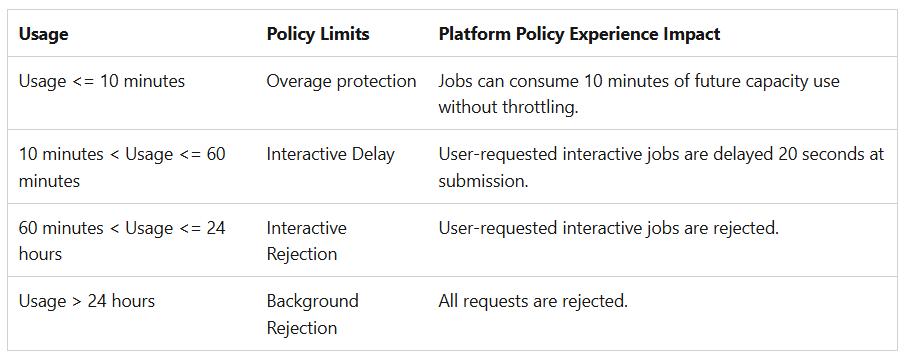
To summarize the throttling policy, capacity throttling works differently for interactive versus background operations:
- Interactive operations are throttled first and experience the quickest impact.
- Background operations are throttled last.
The difference between smoothed CU usage and total available CUs in each timepoint determines how quickly the carryforwarded CUs are burned down. The larger the difference, the faster the capacity returns to normal.
Carryforward CUs: Capacity units that exceed the allowed usage at a given time and are “carried forward” to future timepoints. It’s a debt.
Burndown: The process of reducing carryforward CUs using unused capacity in a timepoint. It’s paying back the debt.
Users hate delays in interactive operations and often retry actions multiple times, which compounds the problem by adding additional carryforwarded CUs. Importantly, in-flight operations aren’t throttled. A long-running Fabric data ingestion, for example, will complete uninterrupted but accumulate carryforwarded CUs, which delays the capacity’s return to normal.

Addressing throttling differs by workload type:
- Interactive operations: Users can often be asked to wait, giving capacity time to recover while limiting new interactive operations.
- Background operations: Canceling or rescheduling background operations is more complex, sometimes requiring approvals in production environments, which slows recovery.
By separating Power BI and Fabric workloads into different workspaces and capacities, you gain several advantages:
- Fabric-only capacities can be utilized at 90–95% on average, since there’s no need to account for unplanned spikes from interactive workloads. When throttling occurs, the impact is minimal, giving capacity admins time to respond.
- Power BI-only capacities handle a mix of interactive and background operations. This allows background refreshes to proceed while leaving enough headroom for interactive spikes. Enabling capacity-level surge protection prevents background operations from worsening the throttling duration.
- Even if dedicated Fabric and Power BI capacities aren’t possible, separating the workspaces puts you in a better position to recover from throttling. For example, you can move a Fabric-only workspace to a capacity with sufficient CUs to support its background operations, helping to reduce the accumulation of carryforwarded CUs on the throttled capacity.
Note: The effect of rejecting the new background operations by the surge protection must be discussed and addressed, as reports may continue to show outdated data until the next scheduled refresh.
In short, separating Power BI and Fabric workloads ensures predictable CU usage, simplifies throttling management, and maximizes performance for both interactive and background operations. It provides the flexibility and control needed to optimize capacities without compromising reliability or user experience.
A vital factor to consider in the future will be workspace-level surge protection.
Lifecycle Management
Power BI artifacts and Fabric engineering assets follow different development lifecycles, use different tooling, and have varying levels of Git maturity. A workspace can only be connected to a single Git repository at a time. This means all artifacts in that workspace end up in one repo, and everything in that repo syncs back to the workspace. If you rely on the workspace-driven Git workflow, there’s no straightforward way to change this behavior. You can avoid this limitation by using external tools like VS Code for Git operations, but doing so shifts you away from the native workspace integration.
Mixing them inside a single workspace complicates deployments, version control, and team collaboration. Separating Power BI and Fabric workloads into different workspaces brings clarity and stability to your CI/CD processes.

6. Different Development Cycles and Environment Setup
Power BI and Fabric artifacts naturally require different environment structures.
- Fabric workloads typically need separate environments for raw and curated data, ingestion workflows, and lakehouse stages.
- Power BI, on the other hand, generally follows Dev, UAT, and Prod stages aligned with feature releases and report validation, though self-service scenarios may not require all of them.
Data engineers often need room to experiment with transformations in Dev, while Power BI analysts usually only need to validate visuals or DAX changes in UAT. Fabric data engineering workloads also follow development patterns that differ substantially from those in Power BI. Engineering teams iterate on data products and transformations that require structured testing and controlled releases. In contrast, Power BI teams often ship visual updates, new reports, or DAX refinements at a much faster pace.
When both workloads share the same workspace, managing these lifecycle boundaries becomes unnecessarily complex. Separating workloads into dedicated workspaces allows each environment structure to evolve organically without forcing one model onto the other.
7. Enables Team-Specific Lifecycle Management Tools
Data engineers are traditionally more experienced with version control and automated deployment workflows. They are comfortable using Git-based solutions, such as Azure DevOps, with automated testing and CI/CD pipelines. For Power BI developers, however, Git-based version control is relatively new. Their deployment experience typically centers around Fabric Deployment Pipelines, which work well for Power BI items but may not offer the flexibility or automation capabilities that data engineering teams require.
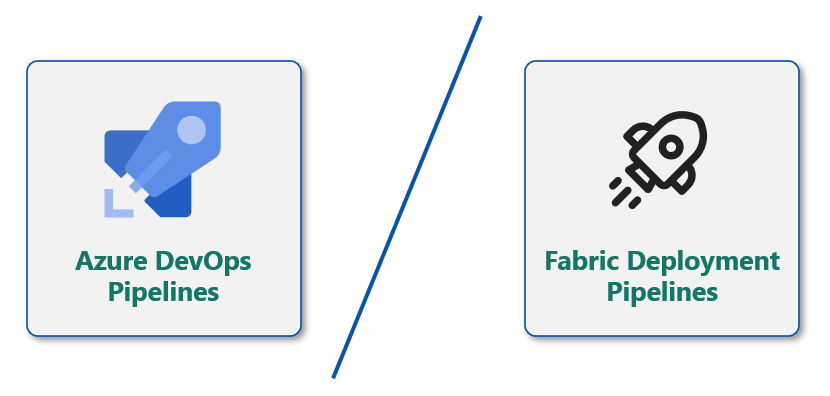
This difference becomes problematic when Power BI and Fabric workloads share a workspace. The chosen version control or deployment tool for one team may not align with the expectations or needs of the other.
By splitting workloads into separate workspaces:
- Each team can use the version control and lifecycle management tools that suit their workflow without interfering with the other.
- Commits remain cleaner and less noisy, with fewer merge conflicts, streamlined code reviews, and more reliable automated testing.
- Development cadences naturally align with each team’s responsibilities and priorities, rather than being constrained by a shared workspace structure.
- Git syncs triggered by Fabric artifacts won’t overwrite Power BI content, and vice versa.
8. Different Components Have Different Git Maturity Levels
Fabric’s Git integration is still evolving, with components maturing at different rates and varying in stability and feature completeness. New Fabric capabilities are released frequently, but it often takes time for them to support Git-based workflows fully. In contrast, Power BI artifacts are receiving significant investment from Microsoft to advance Git-enabled version control and deployment practices.
Separating workspaces ensures each team can progress at its own pace:
- Power BI teams can adopt and refine their Git workflows without being constrained by engineering artifacts.
- Fabric Engineering teams can manage their Fabric assets independently as Git support continues to mature.
9. Reduced Deployment Risk
When Power BI and Fabric artifacts share a single workspace, a deployment can inadvertently affect other items in that workspace. Careful attention is required to ensure that a Fabric deployment does not impact business reports or that a Power BI deployment does not overwrite engineering artifacts. While both Fabric and Azure DevOps deployment pipelines allow you to selectively deploy artifacts, this flexibility comes at the cost of additional manual steps and greater attention to detail. This adds complexity to pipelines and deployment processes, as each deployment must be carefully managed to ensure only the intended, approved changes are being deployed.
Separating workspaces isolates these risks:
- Power BI deployments won’t accidentally update Fabric artifacts and vice versa.
- Rollback operations become simpler and affect fewer components, reducing the potential for unintended consequences.
Automation and Operations
Automation is essential for keeping a large organization’s platform running smoothly. While issues inevitably arise, maintaining uninterrupted operations is critical to ensure the business continues without disruption. A practical advantage of separating Power BI and Fabric workloads and using a clear naming convention for workspaces is that it enables automation, helping to streamline and simplify operational processes.
10. Automation to Reduce Manual Overhead
Workspaces that follow consistent naming patterns, e.g.,FIN-PBI-PROD, FIN-FABRIC-PRDmake it far easier to automate governance and management processes. Automation scripts and APIs can quickly infer:
- Workspace purpose (Fabric engineering vs Power BI analytics)
- Environment (Dev, UAT, Prod)
- Ownership or domain
- Capacity assignments and movement rules
With predictable naming and workload separation, it becomes possible to automate:
- Workspace scanning and compliance checks
- Capacity load balancing
- Workspace movement based on thresholds (CU consumption, throttling, etc.)
- Deployment workflows
- User access and RBAC enforcement
Automation is much more complex when a single workspace contains a broad mix of artifacts. Separation keeps automation logic predictable and straightforward.
11. Streamlined Operational Management
Operations teams, service desk agents, capacity admins, etc., can quickly identify the purpose of each workspace by its name. This simplifies:
- Performance monitoring
- Incident and request handling
- Recovery from capacity outages
- Workspace lifecycle management
- Capacity planning
- Cost forecasting
Cost Management and Chargebacks
Separating Power BI and Fabric workloads into different workspaces creates a natural boundary between business-facing analytics consumption and technical data engineering operations. This separation dramatically improves cost transparency, budget allocation, and chargeback accuracy.
12. Accurate Cost Attribution and Departmental Chargebacks
In organizations where multiple teams share a Fabric capacity, chargeback models are only effective when consumption can be clearly attributed to the right owners. Without separation, all workloads draw from the same capacity bucket, making cost chargebacks and accountability difficult.
The Fabric Chargeback app provides a reasonable view of relative capacity consumption for cost chargebacks. However, to keep things simple and manageable, the most effective approach is to evaluate capacity usage at the workspace level, where consumption can be easily mapped to a team or department. Drilling down to the artifact level within each workspace adds unnecessary complexity and creates an operational burden that can be largely avoided when workloads are separated across workspaces.

Splitting workloads provides clear lines of responsibility and delivers better insights for budget planning and capacity scaling. Some key questions that become easier to answer with separation are:
- Which CU consumption belongs to backend data engineering?
- Which CU consumption is associated with Power BI analytics?
- How can future capacity requirements be accurately forecasted?
- Which teams need to optimize their processes?
Clear boundaries between consumption domains make these analyses far more accurate. In addition, workspace separation enables:
- Business units to be charged for their Power BI models, refreshes, and report usage.
- Data engineering teams to be billed for pipeline runs, transformations, and storage operations.
- Transparent reporting that maps workloads directly to the responsible teams.
Conclusion
In this article, we explored 12 practical reasons across key areas such as Licensing, Access Control, Audit and Governance, Capacity Requirements and Usage Patterns, Lifecycle Management, Automation and Operations, and Cost Management and Chargebacks to highlight the importance of separating Power BI and Fabric workloads into different workspaces.
In summary, separating workloads offers numerous benefits: it helps reduce total cost of ownership, enables flexible scaling as workloads evolve, improves capacity utilization and recovery from outages, supports better team collaboration, and allows each team to use their preferred environment structures and lifecycle management tools. Additionally, it simplifies automation and daily operations while providing clearer cost attribution, more accurate capacity forecasting, and straightforward chargebacks to departments or domains.
 bits2BI
Leave a comment