
A short guide to selectively refresh tables in Power BI datasets with XMLA endpoints


Refreshing the entire dataset in Power BI is not always desirable or sometimes even unnecessary. Unfortunately, Power BI Service doesn’t provide an option to refresh tables selectively. Either you refresh all the tables or none. XMLA endpoints address this shortcoming and provide a flexible and fine-grained option to refresh (among other things) datasets, tables, and partitions.
XML for Analysis (XMLA) is a protocol for communication between client applications and an Analysis Services instance such as Azure Analysis Services, SQL Server Analysis Services, and Power BI.
This article discusses the requirements, limitations, and steps to selectively refresh tables in Power BI datasets using SSMS with XMLA endpoints.
Prerequisites
Connecting to XMLA endpoints and refreshing a table is relatively straightforward. However, the following pre-requisites need to be fulfilled.
Capacities & Licensing: XMLA endpoint support is a Premium feature in Power BI. Only the datasets hosted in the following workspaces can be refreshed using XMLA endpoints: Power BI Premium, Premium Per User (PPU), and Power BI Embedded.
Admin Settings: The following two settings shall be enabled in the Admin portal for XMLA endpoints to function. Confirm with your Power BI/capacity admin if you’re unsure or if this guide doesn’t work.
- Enable XMLA read-write: By default, Premium or Premium Per User dataset workloads have the XMLA endpoint property setting enabled for read-only. However, the XMLA endpoint property must be set to read-write to allow applications to perform write operations.
- Allow XMLA endpoints and Analyze in Excel with on-premises datasets: The Power BI admins must enable this tenant-level setting; they can disable it for the tenant or a subset of users. You should be on the allowed list of users.
Access Rights: Build permission for the dataset you want to refresh.
How do you get the build permission?
SQL Server Management Studio (SSMS): Download and install the latest version from here.
If you’re confident that all the requirements are in order, move on to the next steps. If any of the conditions mentioned above have not been met, you will undoubtedly encounter errors.
Get the XMLA endpoint
XMLA endpoint is, in fact, a connection string, and Power BI workspaces have a connection string in the following URL format:
powerbi://api.powerbi.com/v1.0/[tenant name]/[workspace name]You can also replace the tenant name with myorg if your UPN is in the same tenant.
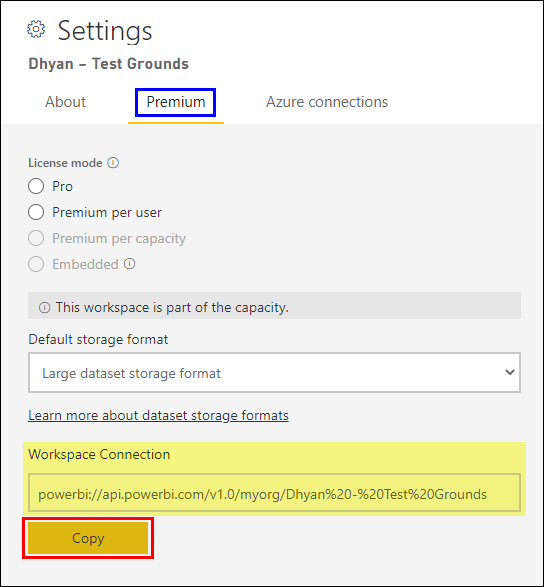
powerbi://api.powerbi.com/v1.0/myorg/[workspace name]Head over to the Power BI Service and grab the Workspace Connection URL from the workspace settings. In workspace, Settings > Premium > Workspace Connection, select Copy.
Connect with SSMS
Using SSMS to connect to an XMLA endpoint is similar to connecting to an Analysis Services server. Select/fill the fields in the connect dialog box and hit Connect.
- Server type: select Analysis Services
- Server name: enter the workspace connection URL
- Authentication: select Active Directory — Universal with MFA
- User name: enter your organizational user ID

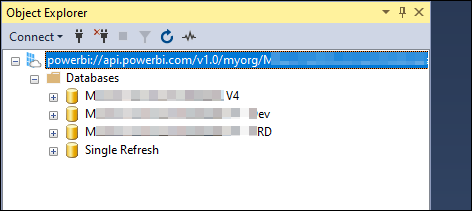
When connected, the workspace is shown as an Analysis Services server, and datasets in the workspace are shown as databases.
Refresh a single Table
Expand the dataset and then the tables. Next, select the table you want to refresh, right-click and choose Process Table.

In the Process Table(s) dialog box, select Process Full as Mode. Select all the tables you want to refresh, and hit OK. Following processing modes are available, and you may choose the one to best fit your requirements:
- Process Full: Process a table and all the objects that it contains. Analysis Services engine drops all data in the table and then processes the table. Full processing is required when a structural change has been made to the table.
- Process Data: Load data into the table without rebuilding hierarchies or relationships or recalculating calculated columns and measures.
- Process Default: Detects the processed state of the table and performs the processing necessary to deliver a fully processed state. For example, data for empty tables and partitions are loaded; hierarchies, calculated columns, and relationships are built or rebuilt.
- Process Clear: Removes all data from the table and any table partitions.
- Process Defrag: Defragments the auxiliary table indexes.

Wait for the refresh to finish; it might take a while based on the selected mode, selected number of tables, and data volume. A prompt will notify you of the status. If there were any errors in processing, you could refer to the Details to identify the issue.

Date, time, and status for dataset refresh operations with XMLA endpoints are recorded in the dataset refresh history and Power BI audit logs.

And a word of caution
Power BI records the refresh and write-operations with XMLA endpoints under the umbrella of dataset refresh. There is no distinction concerning the type of operation or refresh granularity. You may look at the last refresh timestamp and assume that a full refresh occurred. In contrast, the reality could be different. Establish a method of clear communication to avoid and address the possibilities in your team.

Limitations
The following dataset types are unsupported and can’t be refreshed via XMLA endpoints:
- Datasets based on a live connection to an Azure Analysis Services or SQL Server Analysis Services model
- Datasets based on a live connection to a Power BI dataset in another workspace
- Datasets with Push data by using the REST API
- Datasets in personal workspaces (My Workspace)
- Excel workbook datasets
Troubleshooting
This article documents the XMLA endpoints in detail and covers various scenarios. Take a look to read more or resolve any issues you may encounter.
That’s all, folks! So hit refresh and grab a cup of coffee.


Leave a comment