
How to resolve Firewall errors (“Unable to combine data” errors) in Tabular Editor for Power BI Datasets


Firewall errors can be highly frustrating when working with Power BI, requiring specific expertise to resolve them effectively. However, addressing firewall errors in Tabular Editor presents a greater challenge compared to Power BI Desktop, especially when queries that function flawlessly in Power BI Desktop trigger firewall errors in Tabular Editor. Discovering effective solutions to overcome Firewall errors becomes paramount in achieving a smooth workflow with Power BI datasets.
This article provides guidance and workarounds to tackle firewall errors encountered while working with Power BI datasets in Tabular Editor. We will also delve into distinguishing genuine and false positive errors, ensuring a more accurate and efficient debugging process.
Firewall errors are raised by Power Query’s data privacy Firewall while combining data from different data sources. To improve security and prevent data leakage, a privacy level must be defined for every data source in Power BI. Privacy levels determine whether the data from one data source can be shared with another.
Setting up the correct privacy level for your data sources is a critical starting point for fixing Firewall errors. In a previous article, we discussed the importance of privacy levels, their impact on the Power Query’s Firewall, and how to fix the Firewall errors in Power BI Desktop. We recommend a thorough reading before proceeding with this article. This article heavily references the concepts and examples from our previous article on data privacy and Firewall errors.
Prerequisites
The dataset should be hosted in a Premium workspace with XMLA write operations enabled. In addition, we need
- XMLA endpoint for the workspace
- Build permission for the target dataset
- Power BI Desktop
- Tabular Editor (both v2 and v3 should work)
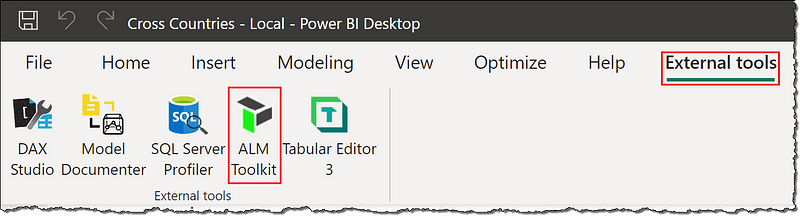
- ALM Toolkit: ALM Toolkit is a great tool to manage, compare and selectively commit metadata, DAX, and other model changes across datasets. Download and install ALM Toolkit from here. Once you’ve installed the ALM Toolkit, confirm it’s available in your Power BI Desktop under External tools.
Firewall Errors in Tabular Editor
Power Query’s data privacy Firewall can raise two types of errors.
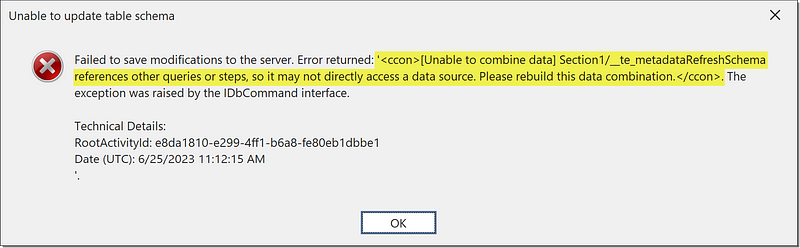
1. Query references other queries or steps: This error is raised when a query tries to access a data source and another query or step simultaneously.
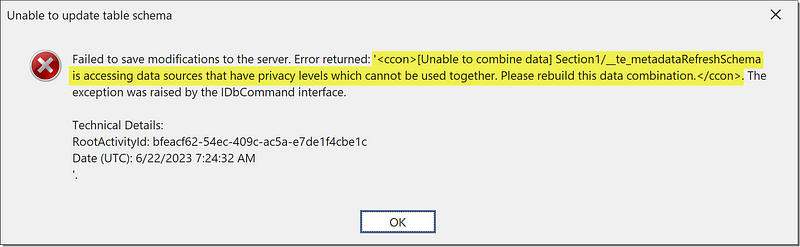
2. Incompatible privacy levels: This error is raised when a query tries to pass data between data sources with incompatible privacy levels.
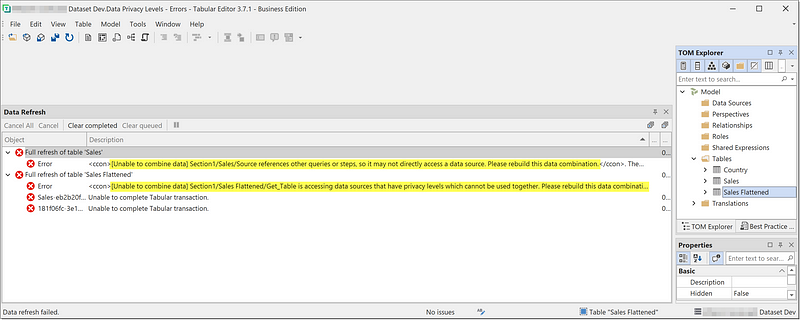
Unlike Power BI Desktop, in Tabular Editor, Firewall errors are shown with an “Unable to combine data” text. For rookie developers, that can cause problems as it becomes hard to recognize Firewall errors apart from non Firewall errors.
When do the Firewall errors occur in Tabular Editor?
Let’s look at scenarios when we typically encounter Firewall errors in Tabular Editor.
- While adding a new table and using the Update table schema to add the columns to the table
- While using Update table schema on an existing table to detect and add new columns or remove columns
- While refreshing a table or the model
Behind the scenes
Understanding how refreshing and updating table schema works in Tabular Editor is important. We need correct data source credentials for both operations to function.
Refresh: While refreshing, Tabular Editor instructs the dataset in the Power BI Service to refresh the table or the model. Tabular Editor doesn’t communicate directly with the data sources. A Firewall error raised during refresh is generated by the dataset in the Power BI Service and communicated to the Tabular Editor. These errors result in a failed table refresh.
Update table schema: Tabular Editor communicates directly with the data source while updating table schema. Tabular Editor prompts the user to specify the credentials for SQL-based data sources. For other data sources, Tabular Editor fetches the credentials from the dataset settings in the Power BI Service. These errors result in a failed table schema update.
Updating table schema is an important step for the Tabular Editor to add or update the metadata of the columns to the data model. You need to complete the schema updates to add columns to your new table or update columns in your existing tables.
False positive errors
Tabular Editor can raise false positive errors while updating the table schema. If the M code for a table contains a reference to other queries, then a “query references other queries or steps” error is raised. These errors can be false positives because the M code runs successfully in Power BI Desktop and Service but raises an error in Tabular Editor.
Consider this scenario; we have a Continents table from SharePoint containing country-to-continent mapping information. And a Countries table sourced from an SQL server contains country-related information like country name, country ID, etc. We want to join these two tables and bring the continent names from the Continents table to the Countries table. It’s a simple data mashup operation and can be achieved by merging the two queries with a join.
We can see the correct columns under the Countries table in Tabular Editor. Moreover, If we refresh the Countries table, the refresh succeeds.

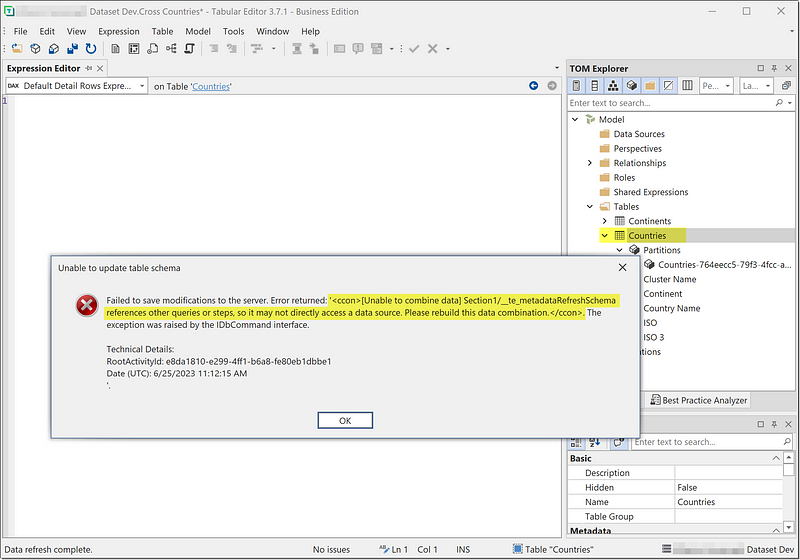
However, an attempt to update the table schema of the Countries table fails with a “query references other queries or steps” error.
Whereas in Power BI Desktop, the M code runs successfully without any Firewall errors.
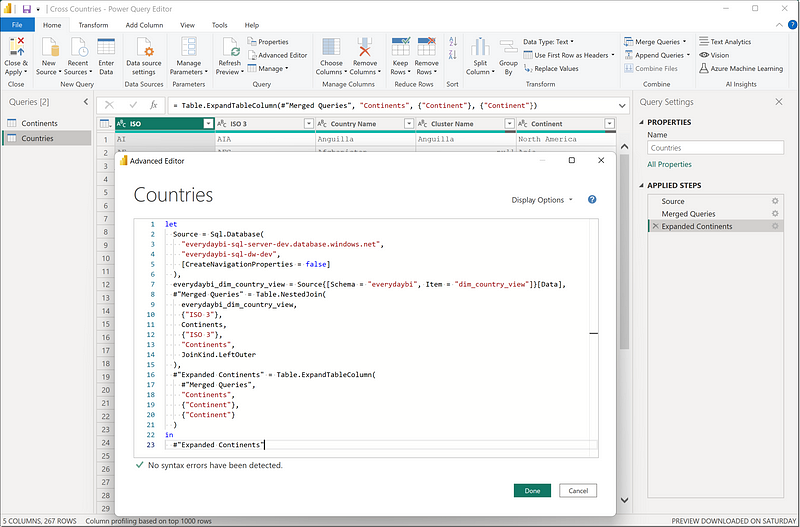
False positive errors are harmless and can’t be fixed by us, but hopefully, they will be addressed with future releases of Tabular Editor. Nevertheless, these errors will prevent us from adding and updating column metadata. So we have to get around them to update the column metadata.
A Firewall error while refreshing a table is never a false positive and must be resolved.
How to identify false positives?
To identify the false positives errors from genuine (positive) errors, recreate the relevant tables in Power BI Desktop and enforce the privacy levels. If the table loads without raising a Firewall error, we have a false positive in Tabular Editor.
Resolving Firewall Errors in Tabular Editor
Query references other queries or steps
The steps to resolve this error vary greatly depending on what you’re trying to achieve.
- Suppose you’re just looking through a data model and encounter this error while updating the table schema. If you want to fix it because it’s an error, then most likely, it’s a false positive and doesn’t require fixing.
- Suppose you’re adding a new table to your model or trying to add new columns or remove columns from an existing table and encounter this error while updating the table schema. Then you have to get around the false positive errors and fix the positive errors. This error will prevent you from adding and updating the column metadata to the model.
- If you encounter this error while refreshing a table, that means the error was generated by the dataset in Power BI Service and is a positive error. This error has to be fixed, as it will prevent you from refreshing your table.
Based on our understanding of positive and false positive errors, we can address them as follows:
Fixing positive errors: These errors can only be corrected by flattening and rewriting the Power Queries causing the error. Once you’ve fixed the error in Power BI Desktop, but Tabular Editor still raises an error for the revised M code, it has turned into a false positive, and you need to work around it.
Getting around false positive errors: False positives can’t be fixed, but we must use another method or tool to get around them. Our goal is to update the column metadata in the dataset in Power BI Service and refresh the table.
Consider our example of Countries and Continents from earlier. We have to update the Countries table in Tabular Editor to add a new Country ID column. We know that updating table schema in Tabular Editor fails with a “query references other queries or steps” error. Let’s fix this.
The first step is to recreate the failing table and its dependencies in the Power BI Desktop. Follow these steps:
- Enforce privacy level settings, i.e.; the Firewall should not be disabled from the privacy settings in Power BI Desktop.
- Take the table’s M code from Tabular Editor (available under the table’s partition) to Power BI Desktop and recreate the table and relevant tables in Power Query— Take the M code of Countries and Continents tables from Tabular Editor and recreate them in Power BI Desktop.
- Set compatible privacy levels for the data sources— The data source of both Continents (SharePoint) and Countries (SQL Server) tables should be Organizational.
For our example, the Countries table load without the Firewall error, and the new Country ID column is also present. This also indicates that we have a false positive error in Tabular Editor.
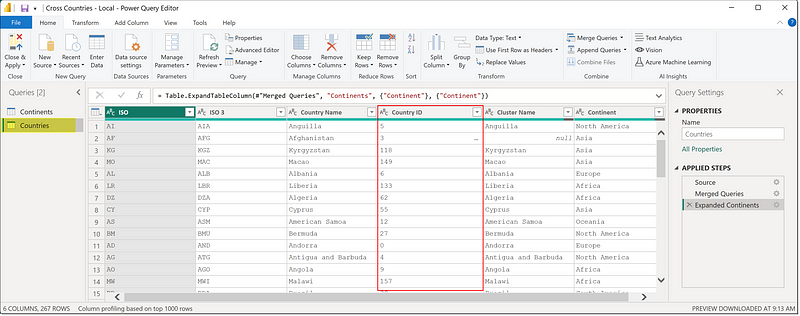
In your scenario, if you’re encountering an error in Power BI Desktop, it’s a positive and genuine error. You must resolve it by flattening and rewriting the queries. You can find an example of how to flatten queries here.
Next, we will use ALM Toolkit to commit the column metadata from the Power BI Desktop file to the dataset in Power BI Service.
- Start the ALM Toolkit from External tools to ensure your file becomes the Source.
- In Target, provide the XMLA endpoint of the Workspace and select the Dataset. Follow the prompt to authenticate yourself and select OK.

- Wait for the ALM Toolkit to finish the comparison. From the comparison results, skip all other changes except the table you want to update. You can find the detailed instructions here if you’re new to ALM Toolkit. For our example, the Country ID column is available in the source but not the target.
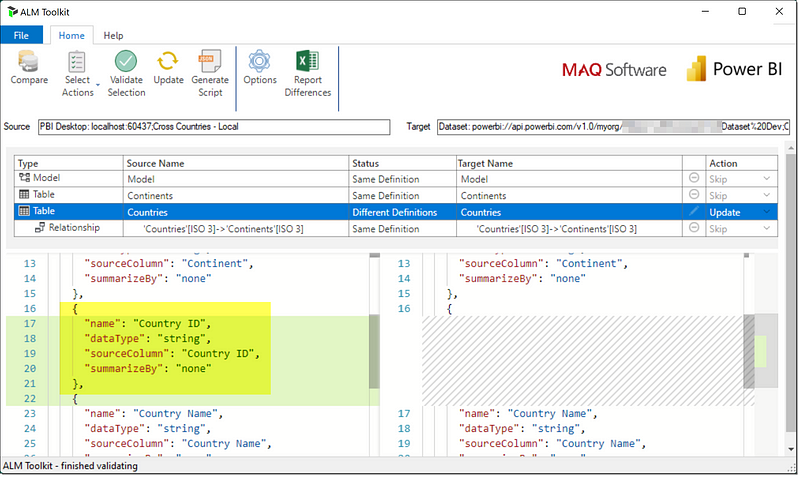
- Ensure you’re only committing the correct and relevant changes, then select Validate Selection. Wait for the validation to finish, review the results, select OK, then select Update. If there are any validation errors, then you must fix those errors in your local Power BI file.

- Follow the prompt, wait for the deployment and data model processing to complete, and close the ALM Toolkit.

If you’re adding a new table to your dataset from a new data source, head over to Power BI Service. Ensure you’ve set your data source’s credentials and privacy level in your dataset settings.
Next, open the Tabular Editor and connect to your dataset.
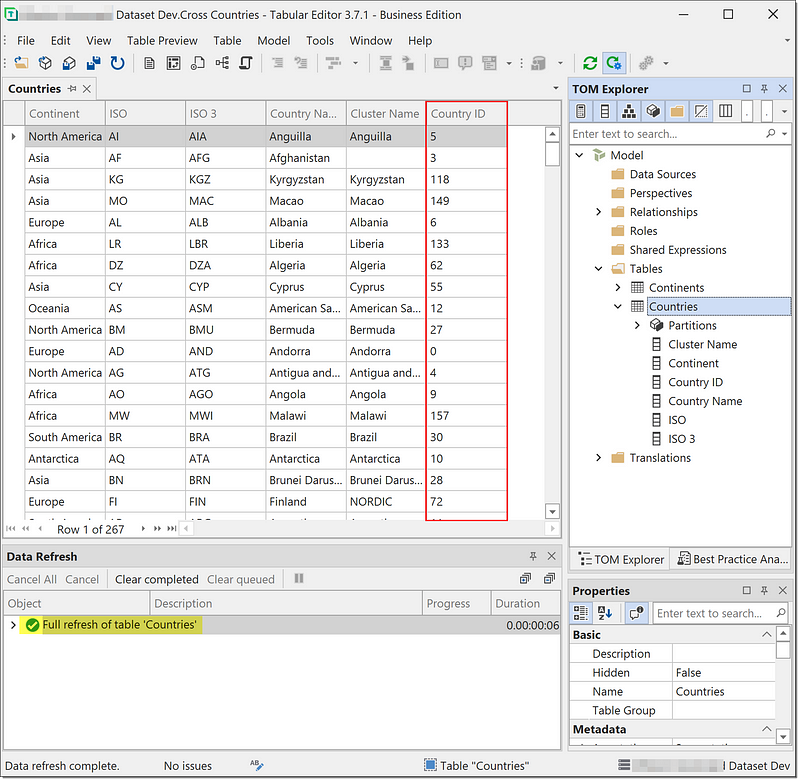
- Verify that your column has been updated under the table. Preview data reveals that our new column is empty.

- Full refresh the table to refresh and populate the new column.
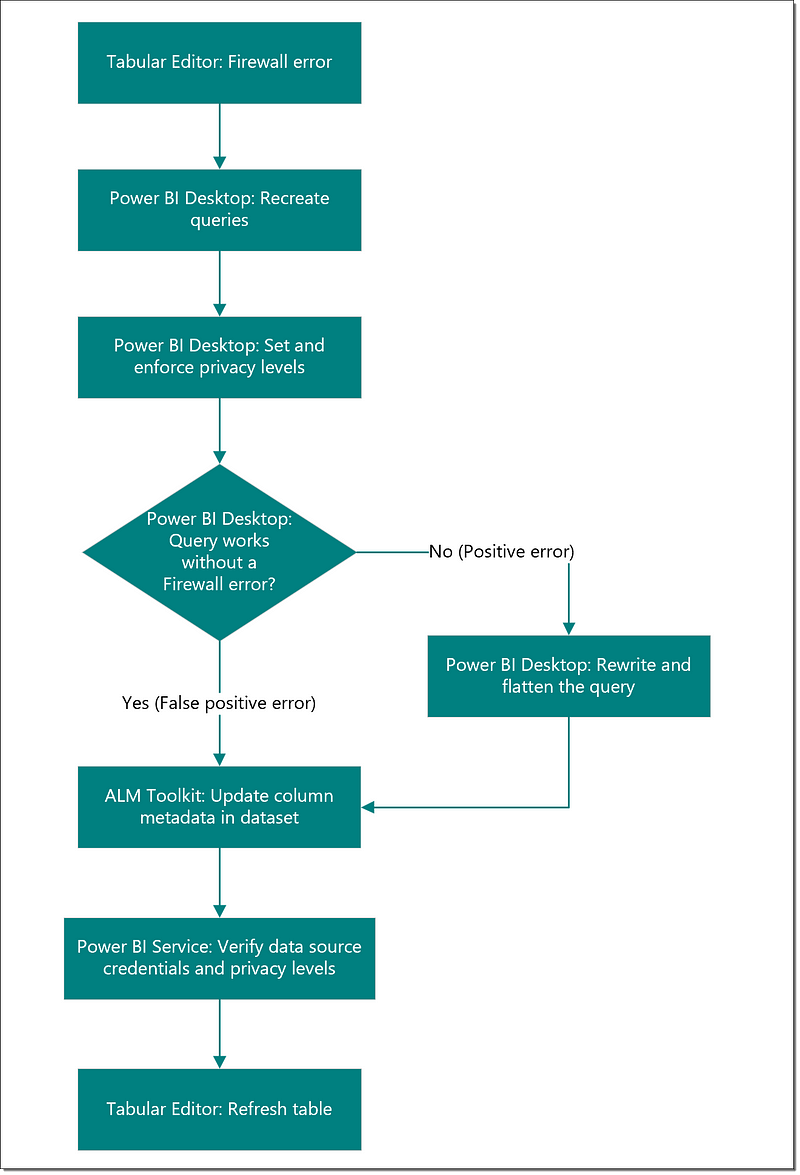
This should resolve your “query references other queries or steps” error. To summarize, the steps can be visualized in the following flow diagram.
If you had to flatten the queries to resolve a positive error, then there’s a chance that you may run into “incompatible privacy levels” while refreshing the table.
Incompatible privacy levels
Resolving “incompatible privacy levels” is relatively straightforward and doesn’t need a workaround. In addition, there are no false positives.
To resolve this error, the data sources used in the failing Power Query should be set to compatible privacy levels, i.e., Public or Organizational.
Tabular Editor doesn’t store data sources’ privacy levels and must be corrected in the dataset settings. Head over to your dataset in Power BI Service. In dataset settings, ensure you’ve set the compatible privacy levels for your data sources.

That’s all for now.
Conclusion
Addressing firewall errors in Tabular Editor can be complex, exacerbated by false errors and varying terminologies. Throughout this article, we have explored the intricacies of firewall errors, provided examples, and outlined methods to differentiate between false positives and genuine errors. We have also shared a useful workaround to resolve these errors and update the table schema effectively. By implementing these insights, you can navigate the challenges of firewall errors in Tabular Editor, ensuring a smoother and more efficient experience while working with Power BI datasets.
 bits2BI
Leave a comment