
A summary of lessons learned while creating a brand new Power Apps custom connector


Recently I had the opportunity to create a brand new custom connector for Power Apps and Power Automate. Given the multiple methods available to create a custom connector, the task was simple and efficiently delivered. However, as a newbie to the scene, unequivocally, the most troublesome part was to deal with various errors.
This article will present lessons learned while creating a new Power Apps custom connector with Azure AD authentication.
Before we begin, it won’t be overstating that most errors are caused by an incorrectly set up Azure AD app (service principal). Therefore, I recommend you take a refresher at the following article (prerequisite section) and ensure that you’ve correctly set up your Azure AD app.
For the sake of simplicity, we can divide the errors into three major categories based on their occurrence during the development process.
Custom Connector Definition
These errors and warnings pop up in the definition of actions while creating the custom connector from an OpenAPI definition file or a Postman collection. There can be multiple reasons, and the best place to look at is the Validation section for a detailed explanation. Two of the most common errors and warnings are
- Unable to resolve schema: The Power Apps custom connector does not support GUID and other complex data types for parameters. So if any of the request or response bodies contains an unsupported data type, the power app shows an unable to resolve schema warning along with the warning symbol in the validation section and the respective request or response section.

Ignore it. Developers shouldn’t care about warnings, only about errors! Go ahead and create your connector. This warning shouldn’t prevent you from making a connector! Jokes apart, this warning is caused by unsupported data types. The easiest way to fix it is to delete the payload in question or Import from sample to add the HTTP request or sample response from scratch.
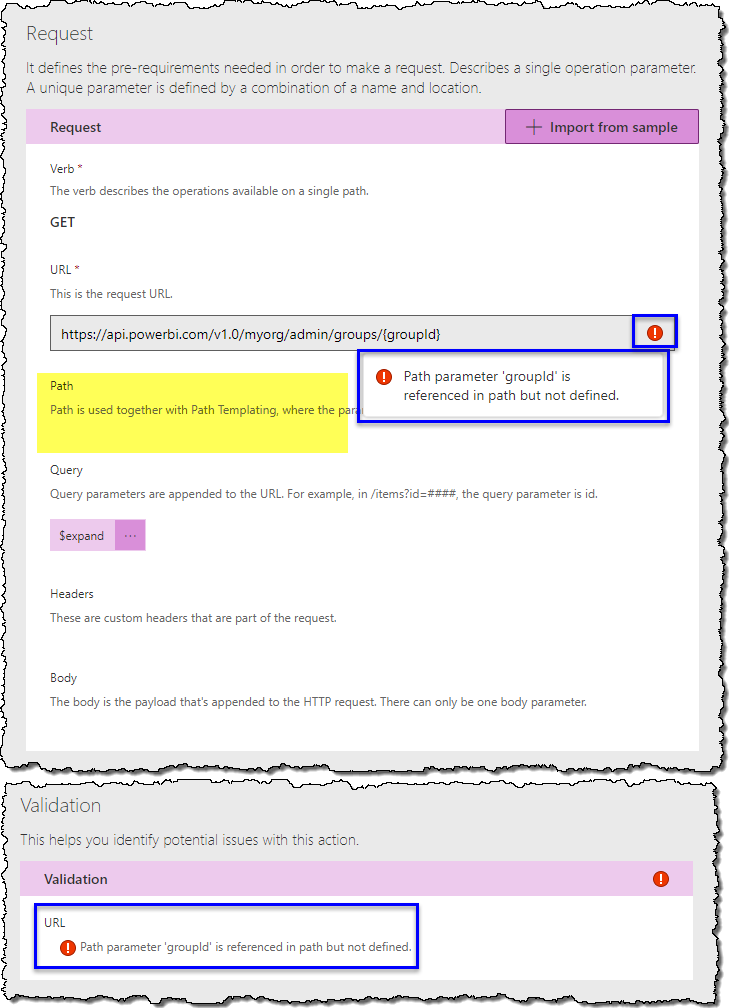
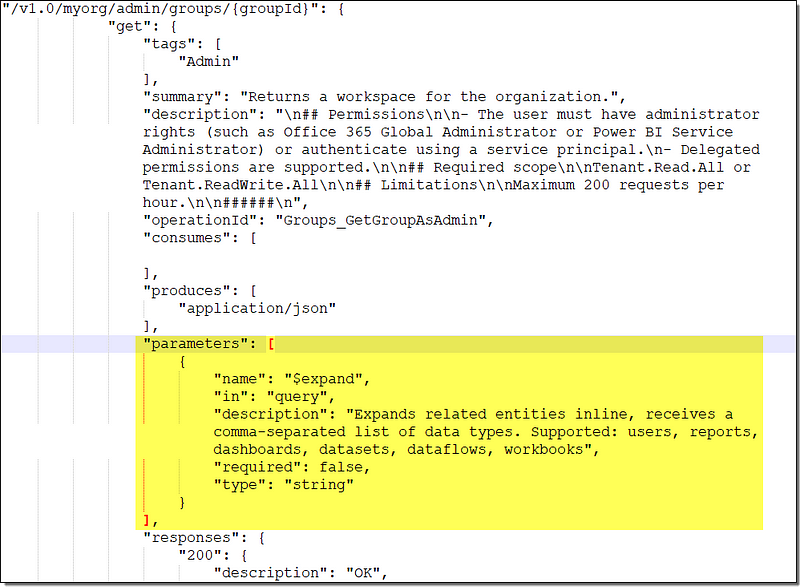
- Path parameter ‘PARAMETER_NAME’ is referenced in path but not defined: This error is caused by the missing definition of the path parameter in the OpenAPI file (refer to sample below). To fix this error, use Import from sample to define the Request from scratch.
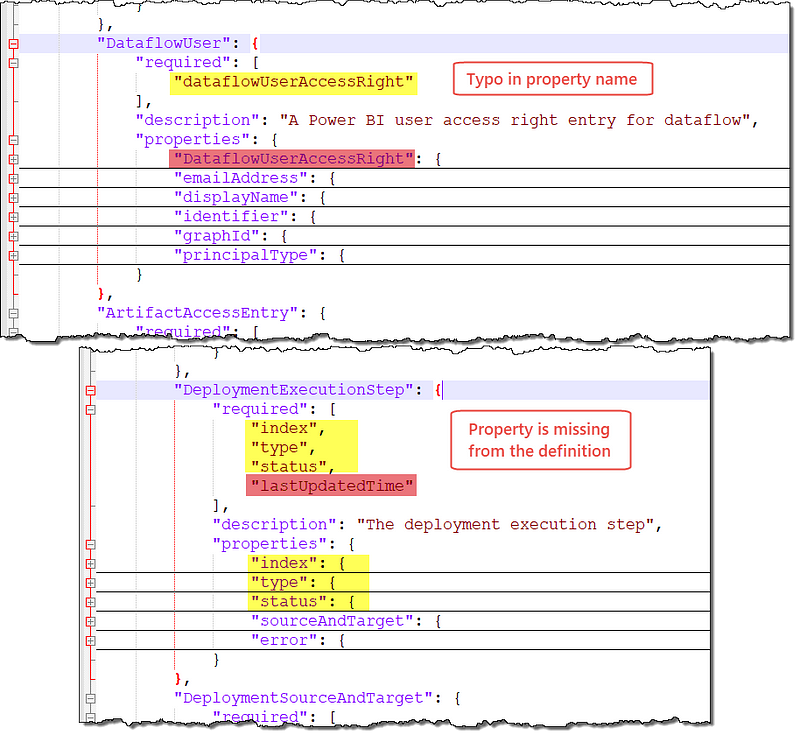
- Definition is not valid — The required property ‘PROPERTY_NAME’ is not defined in the object schema: This error pops up at the top of the Definition page after you’ve hit the Create connector button (refer to sample below). It is caused by the missing definition of a property in the OpenAPI file. Unfortunately, unlike the other issues caused by the OpenAPI definition file, this one can’t be fixed in the Power Apps.

To fix this issue, open the OpenAPI definition file in an editor and use the property name from the error message to find and correct the cause. Two of the most common reasons are typos or case mismatches and missing property from the definition. Repeat the process to create a custom connector and import the fixed file.
Creating a New Connection
If you’ve entered your credentials right and your attempt to create a connection fails, then most likely, the issue lies with your Azure AD app setup. You’ll need access to your Azure Active Directory to fix these issues.
- AADSTS500113: No reply address is registered for the application: Your Azure AD app must have a redirect URI specified to return the token after successful authentication. For Power Apps custom connectors, the redirect URI is always
https://global.consent.azure-apim.net/redirect. Ensure that you have the redirect URI specified in your Azure AD app under Authentication to fix this error.


- AADSTS650057: Invalid resource. The client has requested access to a resource which is not listed in the requested permissions in the client’s application registration: Your Azure AD app must have at least one API permission specified to request access to a resource. To fix this error, ensure that you’ve added appropriate API permissions for your Azure AD app and get consent from the admin as per your organization’s policies.


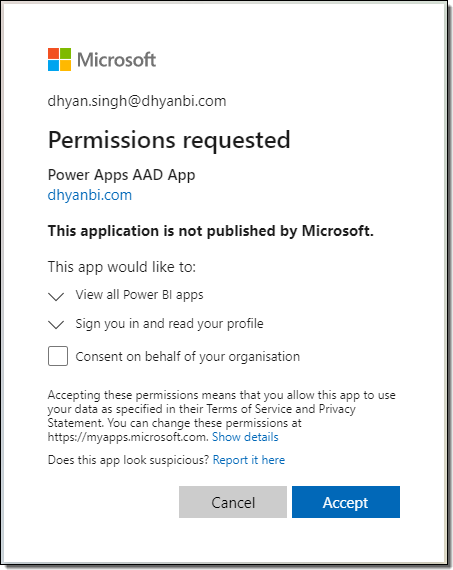
- Permissions requested: Although not an error, a missing consent can prevent you from making a connection. The exact message and consent experience vary based on various factors like organization policies, requested API permission, and your Azure AD role. For example, if you’ve Azure AD admin privileges, you can consent on behalf of all the users. Or reach out to your Azure AD admin to receive consent on behalf of all the users.
Recommended reading on permissions and consent
Executing the Custom Connector Actions
This section lists the errors encountered while executing the actions; these errors are the standard REST API response codes. The exact reason and resolution depend on the resource in question. Consider the mentioned points as a starting point; however, start by looking at the response of the action for hints.
- 400 (Bad Request): The custom connection action refers to an invalid API URL, and the resource can’t find the requested path. If you’ve created your custom connector from an OpenAPI definition file (aka Swagger) or a Postman collection, one of the most common reasons is that the path variables become a part of the URL due to incorrect decoding. To fix this error, ensure that the URL and path variables are defined correctly in the action definition.

- 401 (Unauthorized): Two most common reasons for 401 are
- Azure AD app doesn’t have the permissions required for the action throwing the 401 error. Refer to the API documentation to find out the correct permissions necessary to execute the action. Add the correct permissions to your Azure AD app in the Azure AD app registration under API permissions to fix this error.
- The user doesn’t have rights to perform the requested operation, e.g., calling APIs that need admin rights, whereas the user doesn’t have admin privileges. So one solution is to build the checks in the design and prevent the users from accessing high privileged actions.
- 403 (Forbidden): 403 is usually returned for POST and DELETE operations, and the cause and resolution are the same as error 401. Look at the response of the action for clues and grant the correct API permissions to the Azure AD app as the action requires.

- 404 (Not Found):
- If you’ve created your custom connector from an OpenAPI definition file (aka Swagger) or a Postman collection, one of the most common reasons is that the path variable becomes a part of the URL (at the end of the URL) due to incorrect decoding. To fix this error, ensure that the URL and path variable is defined correctly in the action definition.
- If you’ve created your custom connector manually, i.e., from scratch, then the chances are high that you might have set an incorrect resource URL. To fix this error, ensure that the resource URL is defined correctly in the action definition.
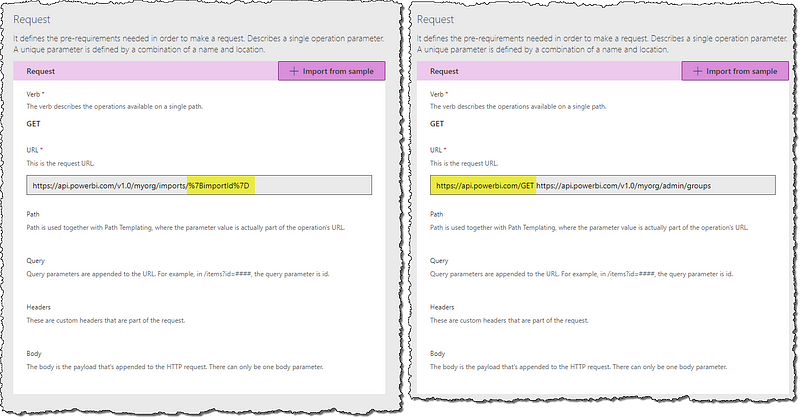
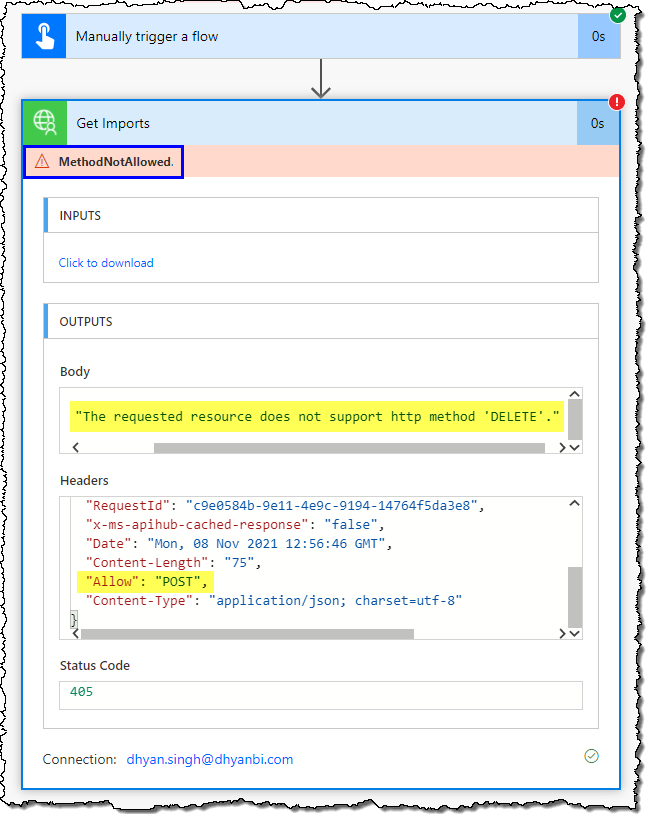
- 405 (Method Not Allowed): If you’ve created your custom connector manually from scratch, then there’s a possibility that you might have set an incorrect HTTP method for the action. For example, you’ve selected the method DELETE, whereas it doesn’t exist for the operation. Look at the response of the action for clues and fix the action by setting the correct HTTP method in the request section of the action definition.
That’s all, folks. Let us know if you’ve encountered any other errors and how you’ve fixed them. We’ll be thrilled to hear about your experience.
 bits2BI
Leave a comment