
Referencing and Accessing Azure Key Vault Secrets in Azure Functions as Environment Variables in Node.js


Azure functions offer a great way to store and reference credentials, keys, and other secrets as application settings. Application settings are exposed as environment variables during execution. Application Settings are encrypted at rest and transmitted over an encrypted channel. However, you still run the risk of inadvertently exposing these secrets to unauthorized users.
A more favored approach to alleviate this issue is to store the credentials or keys in the Azure Key Vault as secrets and reference the secrets as environment variables in our Azure functions apps.
This article will set up an Azure functions app to access secrets stored in the Azure Key Vault. We will also demonstrate how to access environment variables in a Node.js function.
Prerequisites
- An active Microsoft Azure subscription
- Azure Key Vault with secrets
- Azure Functions App (Node.js)
Create a managed identity for your app
Azure provides two varieties of identities for resources and entities; system-assigned managed identities and user-assigned managed identities. By default, the Azure functions app doesn’t have an identity, and an identity must be created to connect and authenticate the functions app to the Azure Key Vault. Sign in to the Azure Portal, and launch your function app. Click Identity, set the Status to On under the System assigned tab, and Save. Wait for the task to finish; the new identity will appear on the screen.

At the time of writing, Azure Key Vault reference only supports system-assigned managed identities.
Further reading on managed identities
Grant functions app rights to read secrets from the Azure Key Vault
We need to give rights to the application identity we just created to read secrets from the key vault. Open your key vault from the portal, click Access policies, and select + Add Access Policy. On the Add access policy screen, select Get for Secret permissions. Go to Select principal and search for your functions app on the Principal blade, select your functions app from the matched content, and proceed as shown.

Additional reading on assigning Azure Key Vault access policies
Azure Key Vault Reference String
An Azure Key Vault reference is of the form @Microsoft.KeyVault({referenceString}), where {referenceString} is the secret identifier, either in the URL form or a key-value form. We will look at both of them shortly. Click Secrets in your key vault, click on the secret you want to reference in your functions app, click on the latest version of your secret and copy the Secret Identifier to a notepad.

Let’s look at both the forms of the Azure Key Vault reference string. We will demonstrate both of them shortly.
# URL form
Full URI of a secret in Key Vault, including a version
@Microsoft.KeyVault(SecretUri=https://kv-restapi.vault.azure.net/secrets/PostgreSQL-Admin/e57d70bd9971412ebb2287f797d3a4)# Key-value form
@Microsoft.KeyVault(VaultName=kv-restapi;SecretName=PostgreSQL-Admin;SecretVersion=e57d70bd9971412ebb2287f797d3a4)Further reading on key vault references
Source Secrets from Key Vault to App Settings
Now that we have our reference string handy and access set up, it’s time to add your app’s secrets as application settings. Open your functions app, go to Configuration, click + New application setting under the Application settings tab. On the Add/Edit application setting blade, enter a Name to identify your secret; the name will be available as the environment variable in the function at the runtime. Enter the Azure Key Vault reference string as the Value and click OK. Repeat the process if you’ve multiple secrets to reference.
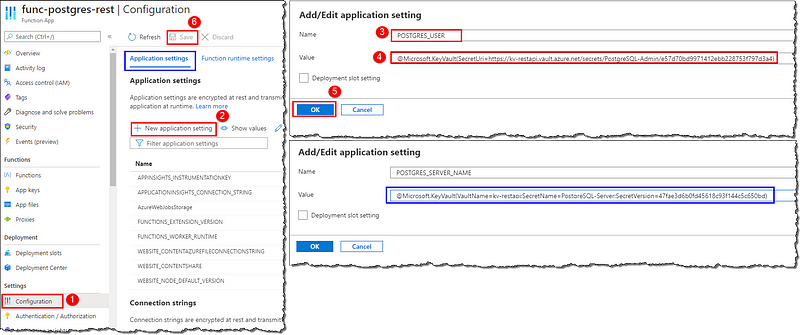
Additional reading on app settings
Are you curious to see how referencing secrets from the key vault prevents our credentials from being exposed? Let’s get on to testing it. Hit Refresh; notice the source of our referenced secrets is shown as Key vault Reference. By default, all the application settings values are hidden, click on one of the key vault reference’s Value and see what happens. Instead of the secret value, we see the reference string we input earlier—our app points to the secret stored in the key vault rather than fetching and storing it. Click on a key vault reference’s Name to bring up the Add/Edit application setting blade, notice the new details section available on the blade with Status. This can help troubleshoot some issues in the future.

Accessing Environment Variables in the Function
As we discussed earlier, application settings are exposed as environment variables during execution. We can access the environment variables in our Node.js code using process.env["APPLICATION_SETTING_NAME"]
Application settings have an application scope and available to all the functions within your app.
Let’s look at a sample code to demonstrate how to access the environment variables in a Node.js function. This function accesses the environment variables during execution and returns the value to the caller as JSON response. The result of triggering the function from a browser and a REST add-on is shown below.
// Azure Function: Node.js code to read Environment Variables during function execution and return variables as JSON
// Author: Dhyanendra Singh Rathore

// Entry point of the function
module.exports = async function(context, req) {

    // Fetch environment variables during execution
    const postgresServerName = process.env["POSTGRES_SERVER_NAME"];
    const postgresUserName = process.env["POSTGRES_USER"];

    // Create JSON response with the variables
    const responseMessage = {
        "Server FQDN": postgresServerName,
        "User Name": postgresUserName
    };

    // Return the response
    context.res = {
        status: 200,
        isRaw: true,
        body: responseMessage,
        headers: {
            'Content-Type': 'application/json'
        }
    };
}

Compliments! You’ve successfully referenced secrets from Azure Key Vault to your Azure Functions App without storing them in plain text.
Conclusion
We learned how to create a system-assigned managed identity for an Azure Functions App and create an access policy in the Azure Key Vault. We referenced Azure Key Vault secrets as application settings and learned how to access the environment variables in a Node.js function. We can conclude, referencing Azure Key Vault secrets is a safe and secure way to use credentials and keys in Azure Functions App.
Next Steps
We’ve got a great article on troubleshooting the Key Vault references. Head over to resolve the error you’re stuck with.
 bits2BI
Leave a comment